
Why TV Brightness Matters for HDR Peak-Nit Performance
A single spec—peak nits—can change how a scene pops: HDR highlights often require hundreds to thousands of nits to look convincing, and your TV’s brightness controls directly govern whether those highlights reach spec or get clamped. You’ll learn how peak luminance, EOTFs, and mode settings interact to shape real-world HDR output.
This article walks you through panel limits (OLED, LCD, Mini‑LED, QD‑OLED), tone mapping and metadata handling, practical peak-nit measurements you can run, trade-offs between brightness, contrast and color volume, and actionable optimization steps—settings, calibration tips, and firmware considerations—to help you get the brightest, most faithful HDR highlights from your display. You’ll also get firmware fixes and quick measurement shortcuts too.


Fundamentals: Peak Nits, HDR EOTFs, and What Brightness Controls Do
What “nits” mean in practice
A nit is simply a candela per square meter (cd/m²) — the unit that turns signal numbers into visible light. When a stream says a scene has a 4,000‑nit highlight, that’s a mastering target, not a guarantee your TV will reach it. Your display’s peak-nit ability and its firmware/tone-mapping determine the real outcome.
HDR EOTFs — PQ (ST.2084) and HLG, in short
- PQ (Perceptual Quantizer) is used by HDR10 and Dolby Vision; it’s an absolute EOTF that maps code values to real-world luminance up to very high targets (often authored to 1,000–10,000 nits). A TV must scale those values down if it can’t reproduce them.
- HLG is relative and broadcast-friendly; it doesn’t carry peak metadata and relies on the display to map brightness adaptively.
PQ’s absolute nature means metadata matters: HDR10 typically carries static metadata (MaxCLL/MaxFALL) while Dolby Vision and HDR10+ can use dynamic metadata to tell the TV per‑scene or per‑frame peak targets, allowing smarter tone mapping or preserving spec highlights.
What brightness/backlight/contrast actually do
- Global “brightness” or “black level” often shifts the floor (shadow detail); it doesn’t increase peak capability.
- Backlight or “OLED luminance” sliders adjust how hard the panel/backlight drives — raising perceived peak until you hit the panel’s limit or thermal/current protection (ABL).
- Local dimming changes how highlights coexist with deep blacks; aggressive algorithms can either preserve or clip peaks depending on implementation.
EOTF adherence, clipping, and software limits
If firmware maps PQ-coded values incorrectly, you’ll see crushed highlights or clipped whites even on a bright panel. In short: measured panel capability ≠ delivered peak. Software tone mapping, ABL, and conservative picture modes are often the bottleneck.
Next, we’ll look at how specific panel technologies (OLED, LCD, Mini‑LED, QD‑OLED) set those hard limits and behave under real HDR workloads.
Panel Technology and Peak-Luminance Limits: OLED, LCD, Mini‑LED, and QD-OLED
Per‑pixel emission vs. backlight architectures
You should think of displays in two camps: per‑pixel emitters (OLED, QD‑OLED) and backlit panels (LCD, mini‑LED/FALD). Per‑pixel TVs can turn individual pixels to true black and drive nearby highlights cleanly, but each pixel’s emitter has a hard current/heat ceiling. Backlit designs can push higher absolute peaks over small areas by brute force through the backlight, at the cost of haloing and less-perfect local contrast.
Heat, current limits, and ABL (practical ceiling)
On OLED and QD‑OLED, increasing your global brightness often hits ABL (automatic brightness limiter) or thermal protection; you’ll see sustained highlights dim as APL (average picture level) rises. On many LCDs, the limiter is backlight power and local‑dimming algorithm — more bright area = lower sustained peak.
Local dimming, zone count, and quantum dots
Local dimming zone density matters. A 500‑zone mini‑LED like the Samsung QN90A keeps small highlights brighter with less blooming than a 60‑zone FALD TV. QD layers (quantum dots) improve color volume at high luminance — so a 1,000‑nit mini‑LED with QDs keeps colors more saturated than a non‑QD LCD at the same nit level.
Quick, actionable tips you can use now
- Test with a 2%–10% white window to reveal true peak and ABL behavior.
- If your OLED clips at high APL, reduce scene brightness (gamma/picture mode) or enable frame‑adaptive modes.
- On FALD/mini‑LED sets, try “local dimming” at high or medium for peak preservation; aggressive smoothing often lowers peak nits to avoid halos.
- Keep firmware updated — manufacturers refine tone mapping and dimming strategies regularly.
Next, you’ll learn how tone mapping and metadata interact with these hardware limits to determine the peaks you actually see.
Tone Mapping, Metadata, and the Brightness-Performance Relationship
Metadata types and what they tell your TV
HDR10 supplies static metadata (MaxCLL/MaxFALL) — a simple ceiling and average limit for the entire title — while Dolby Vision and HDR10+ send dynamic, scene‑by‑scene targets. Your TV reads that metadata and decides whether the source peak is realistically achievable given its native peak, ABL/thermal constraints, and current brightness setting.
How tone mappers reconcile source and display
Tone‑mapping algorithms do one of three things when source peaks exceed your panel’s capability:
- Clip: harshly cut highlights at the display’s peak (fast, simple).
- Scale/compress: curve highlights down smoothly to preserve detail but reduce perceived brightness.
- Redistribute: shift tonal values across the image (protect midtones/colors at the cost of specular punch).
Which method your TV chooses depends on firmware strategy, picture mode, and how high you’ve set “brightness” or “OLED light.” For example, some LG OLEDs will compress more aggressively at lower global luminance, while Samsung mini‑LEDs may preserve speculars until APL triggers backlight reduction.
APL dependence and scene variance
Because APL (average picture level) drives thermal/backlight limits, the same brightness setting can yield higher peak nits on a low‑APL sky shot than on a snowy battlefield. Dynamic metadata helps, but manufacturers still use heuristics: a 1,000‑nit movie frame might be rendered as 500 nits when APL is high.
Practical tweaks you can apply now
- Increase “OLED Light”/“Backlight” to nudge the mapper toward preserving peaks, then test with a 2% white window.
- Try picture modes labeled HDR10/Filmmaker vs. Dynamic — compare clipping vs. compression.
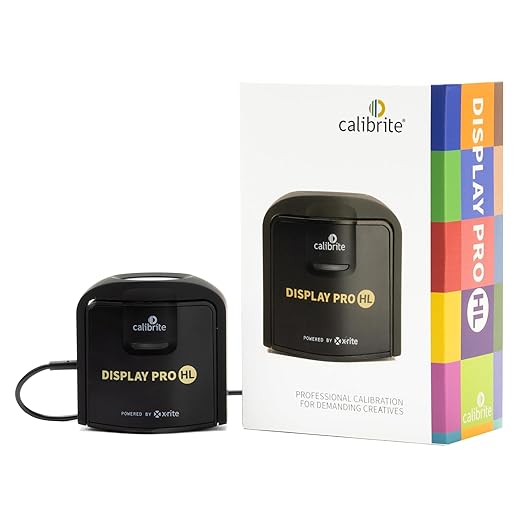
- Use the Calibrite Display Pro HL to measure peak output across varied APL scenes and document firmware changes.
Measuring Peak-Nit Performance: Practical Tests You Can Run
Tools and test patterns
Use tools built for HDR ranges: a spot luminance meter (Klein K-10A, Sekonic C-800), or a colorimeter with validated HDR firmware (Calibrite Display Pro HL, X‑Rite i1Pro 3). Generate these patterns from a player or test disc (AVS HD or Spears & Munsil HDR suites) or use test generators in CalMAN/HCFR.
Important test patterns:
- Full‑screen APL patches (0%, 10%, 25%, 50%, 100%).
- Windowed highlights: 1%, 2%, 10% white windows on black.
- MaxCLL/MaxFALL verification frames and a short burst sequence (1s, 10s, 30s).

Setup and baseline conditions
Start in a native HDR picture mode, disable dynamic contrast/energy‑saving features, and control ambient light (dark room). Use the TV’s native input (10‑bit HDR10 signal) and let the panel warm up 15–30 minutes. Place the meter perpendicular to the screen at the typical viewing distance; for windowed tests, center the probe over the patch.
Step-by-step measurements
- Short‑term peak: display a 1% white window for a 1–2 second burst, log highest instantaneous nit reading.
- Sustained peak: show a 10% window or full‑screen 25% APL for 30 seconds to capture thermal/backlight sag.
- APL scaling: measure each APL patch (0–100%) and plot peak vs. APL to reveal backlight/ABL behavior.
- Metadata check: play a MaxCLL frame and compare measured peak to tagged value; note tone‑mapping clipping/compression.
Pitfalls and validation
Watch for meter saturation (use ND filters), off‑axis errors (keep normal incidence), and temporal averaging settings on your meter. Repeat runs, compare spot meter vs. colorimeter, and verify with visual inspection (specular highlights should “pop” or compress as your data shows). This empirical dataset will prepare you to weigh brightness trade‑offs in the next section.
Trade-Offs: Brightness, Contrast, Color Volume, and Image Fidelity
Contrast and black-level stability
Pushing brightness often costs you contrast. On OLEDs, raising peak drive triggers ABL (automatic brightness limiter), so highlights may look spectacular for a second then collapse as the panel protects itself—black levels can float and shadow detail will wash. On VA-type LCDs (Sony X95/Hisense U8), cranking backlight can cause blooming: bright objects bleed onto dark surrounds and perceived contrast falls.

Color volume and gamut at high drive
When you drive LEDs or OLED subpixels harder, color volume doesn’t scale linearly. Blues and reds clip earlier than whites, so highlights can shift toward a colder or desaturated white. QD-OLEDs and quantum‑dot mini‑LEDs manage this better, but you can still see hue shifts at extreme currents—your tone mapping may clamp chroma to preserve luminance.
Artifacts, heat, and servo limits
Expect transient peaks rather than sustained wins. Power‑supply current limits, thermal throttling, and backlight servo control create short spikes (1–2s) while long sustained APLs sag. This produces local‑dimming pumping, frame‑to‑frame brightness modulation, and heat‑induced white‑point drift—especially in long HDR scenes or warm rooms.
Practical tips to balance peaks and fidelity
- Test with 1% and 10% windows to see transient vs. sustained peaks.
- Use calibrated modes; avoid “Dynamic”/“Vivid” for accurate color.
- Reduce global brightness/backlight if you see blooming or pumping.
- Enable adaptive tone mapping (if good) for better highlight roll‑off.
- For demos, allow short bursts; for movies, prioritize sustained tone mapping and lower long‑term drive to protect color fidelity and panel life.
- If you need both, consider a mini‑LED/QD‑OLED set (e.g., high‑tier Samsung/TCL/Sony models) that better separates zone control from peak demand.
Practical Optimization: Settings, Calibration, and Firmware Choices to Maximize Real-World HDR Peaks
Quick start: presets and what to avoid
Begin in a “Cinema/Filmmaker/ISF” preset — these preserve gamma and color. Turn off “Dynamic/Vivid,” “Auto Brightness,” and energy‑saving modes. If you want loud specular highlights for short clips, test a “Vivid” preset only for demos, never for critical viewing.
Backlight, OLED luminance, and local dimming strategy
- For LCD/mini‑LED: set backlight high enough to reach measured peak targets but reduce if you see blooming; set local dimming to High or Adaptive unless halos appear.
- For OLED: set the luminance/brightness slider around mid (30–60%) as a baseline to avoid aggressive ABL; increase only if short‑burst peaks are desired and ABL behavior is acceptable.
- If your TV offers zone‑control intensity (TCL/Sony high‑end), nudge it up in 5–10% steps while watching 1% window tester clips.
Calibration steps (repeatable workflow)
- Run a 2‑point white balance first (0/100 IRE) to fix large offsets, then a 10‑point sweep for mid‑tone linearity.
- Set overall gamma to match content (2.2–2.4) and map specular highlights: aim your 1% window specular to a practical peak (e.g., 400–800 nits on modern mini‑LED/QD‑OLED; 150–300 nits on typical OLED) rather than the HDR maximum.
- Verify with 1% and 10% patterns and adjust highlight target to avoid chroma clipping.

Dynamic metadata and firmware
Prefer Dolby Vision or HDR10+ when available — dynamic metadata gives better per‑scene tonemapping. Keep firmware current: look for updates that specifically mention “tone mapping,” “local dimming,” or “HDR performance” fixes.
Repeatable checklist
- Start in Cinema mode.
- Disable auto/energy modes.
- Baseline 2‑point white balance → 10‑point tweak.
- Tune backlight/luminance in small steps with 1%/10% tests.
- Enable adaptive tone mapping if it improves roll‑off; disable if it pumps.
This workflow readies you to balance peak impact and stability before the final balancing advice in the Conclusion.
Balancing Brightness and Peak-Nit Realism
Brightness is a control lever—not the sole determinant—of HDR peak-nit performance. Your panel architecture, APL, tone mapping/EOTF handling, metadata pass-through, and thermal/current limits jointly constrain achievable highlights. Raising backlight or OLED white level helps, but without appropriate tone mapping and headroom you’ll hit clipping, desaturation, or thermal throttling.
Measure methodically (APL-dependent test patterns, full-screen vs small‑window stimuli), apply calibrated adjustments, choose firmware modes with accurate EOTF and metadata respect, and accept trade-offs between sustained and instantaneous peaks. Do this and your HDR highlights will be the most faithful to the content and viewing conditions always.
Author

Like this deal? Get deals like this every week.

